Choose a task, follow the steps, and check the result before you move on. These guides cover initial setup, everyday work, permissions, records, reporting, and account management.
Getting started
Create your company, set up roles, and add a small test group before inviting everyone. Getting these basics right prevents most access and reporting problems later.
All plansCompany adminAbout 20 minutes
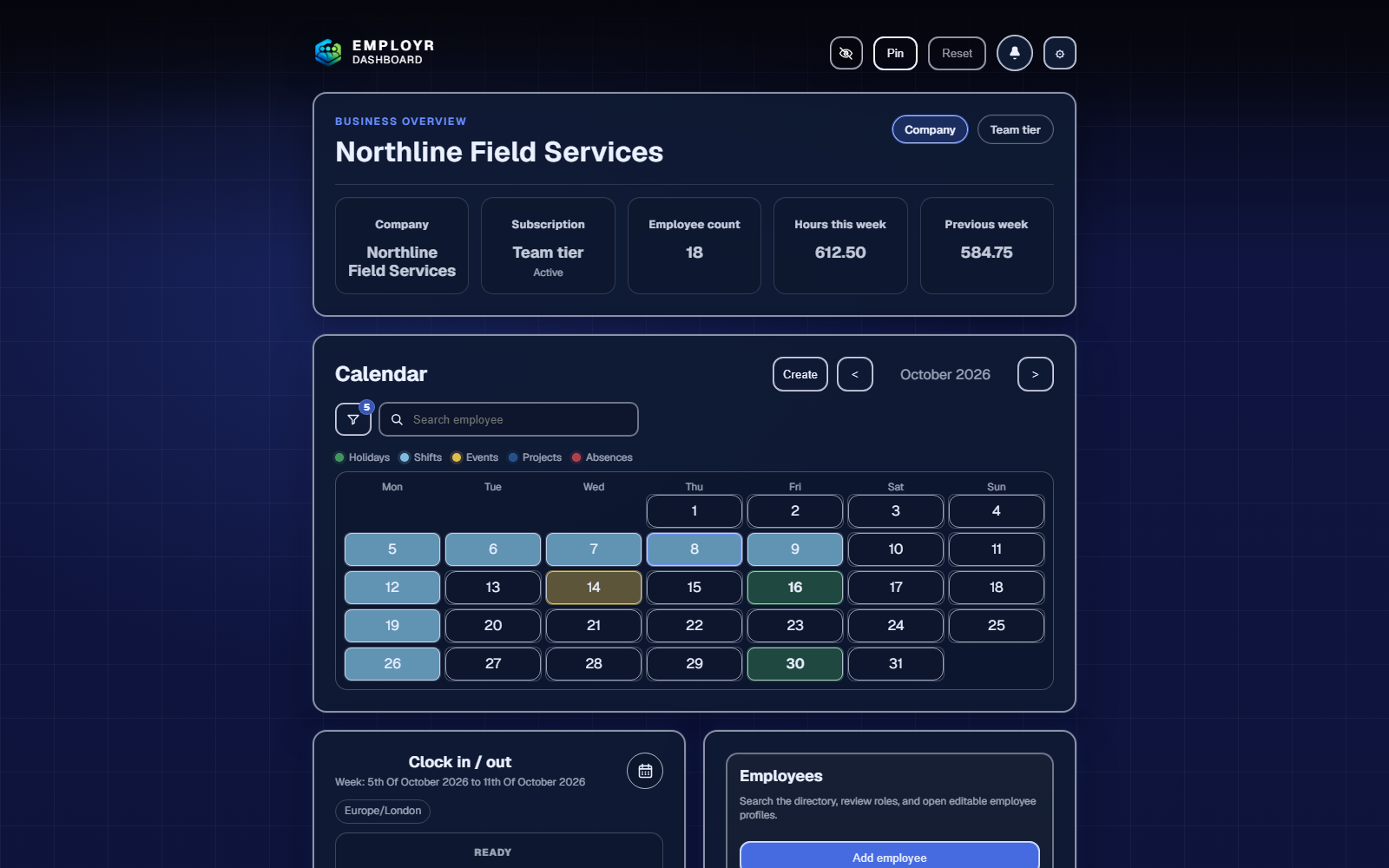
A sample company dashboard after setup. Names and figures shown throughout these guides are demonstration data.
Before you begin
Prepare your structure
List the job roles you need, who should administer the account, and whether employees will be grouped into teams. Decide whether holiday entitlement is recorded in days or hours.
Prepare your records
Have work email addresses, employee IDs, emergency contacts, policies, and your company logo ready. Leave out information that has no clear business purpose.
Set up the workspace
Create the company account.Enter the company and account details, then verify the email address. Use an account controlled by the person responsible for the initial setup.
Create roles before adding people.Use names your team recognises, such as Site Supervisor or Electrician. For each role, enable only the modules and management actions that role needs.
Set holiday and pay rules.For each role, choose a holiday allowance in days or hours, set the holiday-year reset date, and check the hours used for a full holiday day. Business and above can also set pay and overtime rates.
Choose the right plan.Check both the employee limit and the modules you need. You can begin on Free and move up later without creating a second workspace.
Add or invite employees.Add records directly, or share the company join details so employees can create an account and request access. Assign the correct role before giving someone wider permissions.
Test before inviting everyone.Use one administrator and one standard employee. Check that both can sign in, open the right dashboard cards, and complete a typical task such as clocking in. Confirm that the employee cannot open restricted settings or records.
A sensible launch order
Start with employees, roles, the calendar, and clocking. Add holidays and documents next. Introduce projects, forms, equipment, and safety records once the core employee data is correct.
Brand the workspace
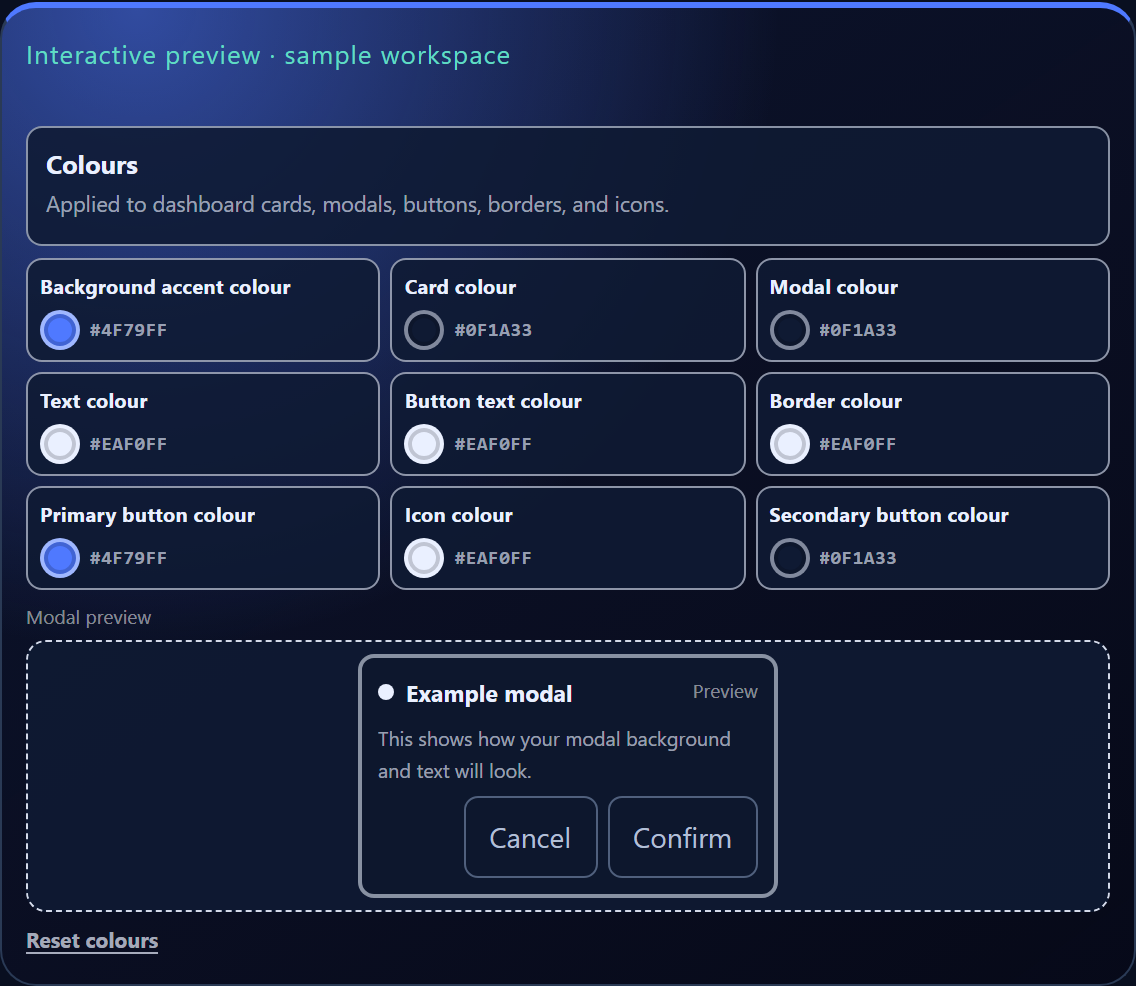
Starter and above can apply a company logo and interface colours from Settings. Choose a high-contrast colour combination, preview buttons and modal text, then check the result on both desktop and phone before saving.
Branding controls in a sample workspace. Check text, borders, icons, and button contrast together.
Go-live checklist
At least two trusted administrators can access the company.
Every employee has the right role, allowance basis, and contact details.
Standard employees cannot see private settings or unrelated employee records.
A test clock entry, shift, request, and notification have completed successfully.
Your team knows where to get help and what information must never be shared in a support request.
Employees & teams
Keep one accurate record for each employee, use roles to control access, and use teams when the same group is assigned together regularly.
Employees: all plansTeams: Team+Admin permission required
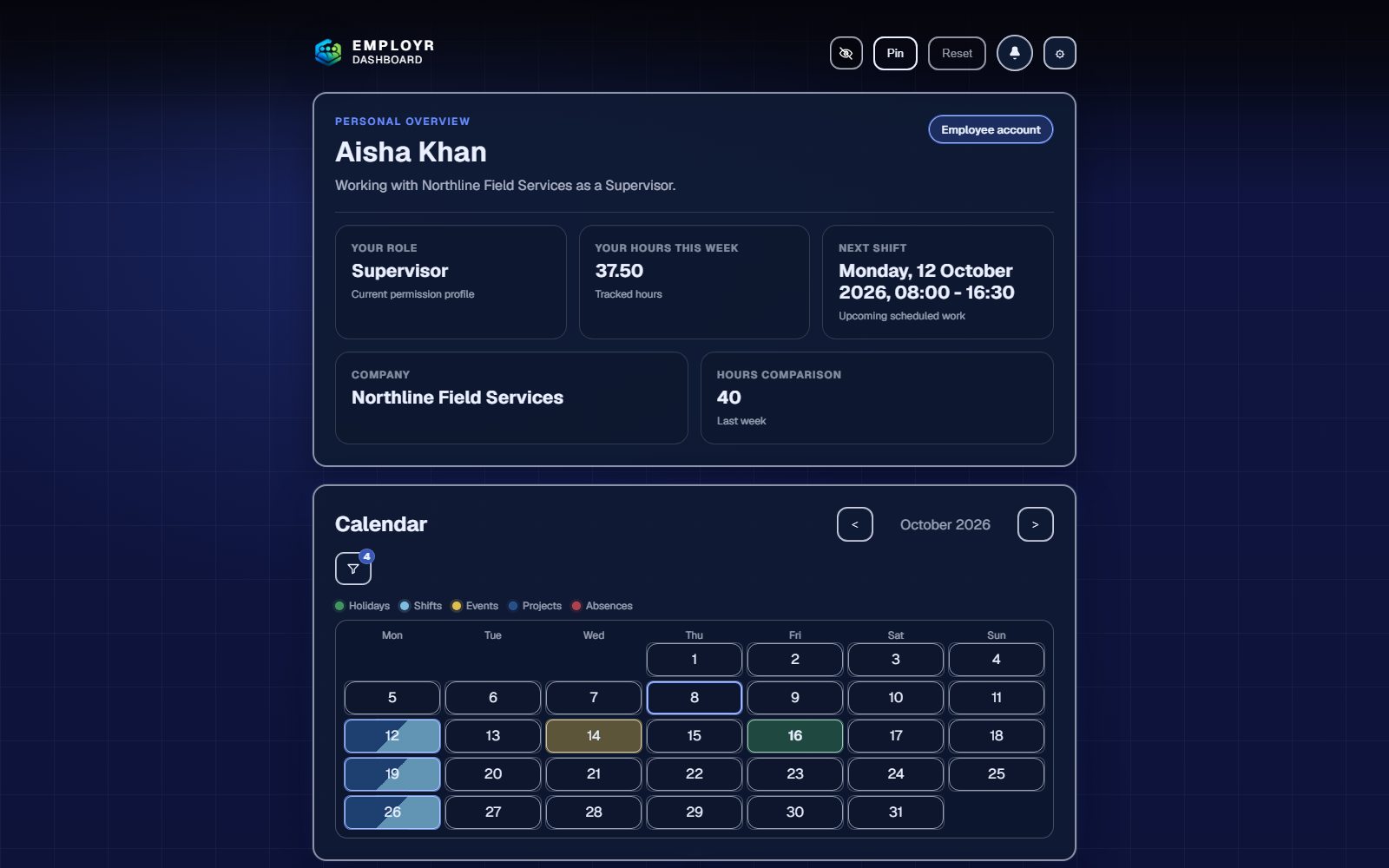
A complete employee workspace showing how role, hours, shifts, and calendar information come together.
People records at a glance
Employee directory
The company list of employees. Authorised users can open a person’s contact details, role, employee ID, qualifications, attachments, and employment records from here.
Employee profile
The record for one person. Keep employee-specific information here rather than in a project or general document, and limit sensitive fields to roles that need them.
Roles and permissions
Reusable rules for what people can see and manage. A role change can affect several employees at once, so check who uses the role before widening its permissions.
Teams
Groups of employees who are often assigned together. Roles control access; teams make assignment quicker. One does not replace the other.
Qualifications and attachments
Certificates, licences, contracts, and other employee files. Record expiry dates where useful and keep your normal process for checking that documents are current and genuine.
Create a complete employee profile
Add the essentials.Enter the person’s name, work email, and role. Use a unique employee ID if your organisation already has its own numbering system.
Add the contact details you use.Phone and emergency-contact details help authorised managers reach the right person. Add government identifiers or private notes only when your organisation has a clear reason to keep them.
Add a profile photo.Upload an existing image or choose Take photo to use the onboarding computer’s webcam or the device camera. Ask the employee before taking their picture.
Record qualifications and documents.Add relevant licences, certificates, expiry dates, a contract, and any supporting files that belong with the employee record.
Review before activation.Confirm the email, role, holiday allowance, and access level. For an administrator or other high-access role, ask a second administrator to check the settings.
Design roles around responsibilities
A role is more than a job title: it is the reusable access model for people who perform similar work. Separate everyday use from management. For example, an employee may submit a holiday request while a supervisor can review it, and an administrator can also change allowance settings.
Use access
Lets a person open and use a module, such as clocking, calendar, documents, projects, or uniform requests.
Manage access
Lets a trusted person review requests, edit records, assign work, or administer that module. Grant this narrowly and review it regularly.
Use teams for repeatable assignment
Team and above can group employees into named teams. Assigning a project, document, form, or calendar item to a maintained team is faster and less error-prone than selecting the same people repeatedly. Team supports up to 5 teams; Business, Growth, and Scale support up to 10.
When an employee creates their own account
Employees can create their own account and join with the company's join details, subject to the plan limit and approval flow. Verify the request against your employee list before accepting it. Never approve an unfamiliar email only because it knows the company name or join code.
When someone changes role or leaves
Update or remove access promptly, reassign open work, close outstanding equipment loans, review future shifts, and preserve only the records your organisation still needs. Avoid reusing one person's account for another employee.
Time & attendance
Record when work starts and ends, link time to the right project, and correct mistakes without losing the original entry.
All plansUp to 5 entries per day35-day correction window
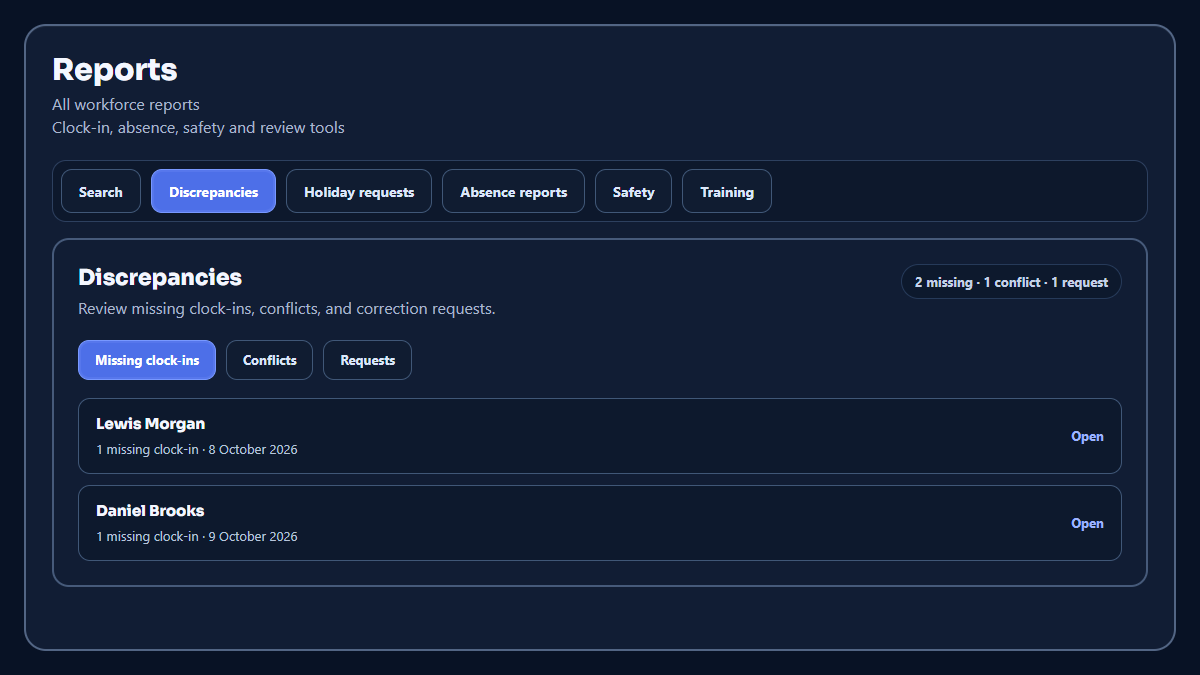
The full Reports workspace brings employee history, time discrepancies, leave, safety, and training review into clearly separated tabs.
What clocking and attendance cover
Clock in and out
Records the date, start time, finish time, and any project or optional location included when the employee clocks.
Project tagging
Links a work period to a project so hours can be reviewed by job. Choose the project before clocking where possible and correct a wrong project before using the figures elsewhere.
Correction requests
Lets an employee propose new times and explain the mistake while keeping the original entry visible to the reviewer.
Discrepancies
Highlights scheduled work with no matching clock-in, conflicting entries, long completed shifts, and corrections waiting for review. Each item still needs a person to check what happened.
Search and export
Filters attendance by employee and date and produces records for further review. Resolve relevant discrepancies and pending corrections before exporting a final period.
Employee clocking workflow
Check today's schedule.Confirm the intended shift and, when projects are enabled, choose the correct project before starting work.
Clock in once work starts.The active state remains visible until the employee clocks out. Optional location can be recorded only when the device has already granted permission; location is not required to clock in.
Clock out at the end of the work period.If the day includes separate work periods, repeat the process. Employr allows up to five clock entries for one employee on one day.
Check the completed entry.Review the time and project before leaving it for reporting. Overnight or unusual shifts deserve an extra check so the dates reflect the real work period.
Correct a mistake
An employee can request a change to a clock entry from the previous 35 days and explain what is wrong. An authorised administrator reviews the existing entry, the requested times, schedule, and note before approving or rejecting it. Use a clear rejection note so the employee knows what evidence or correction is needed.
Admin review and reports
Daily review
Look for people still clocked in, overlapping entries, unusually long periods, and entries without the expected project.
Missing clock-ins
Compare scheduled days with recorded attendance. A missing record may be a forgotten clock-in, changed shift, sickness, or cancelled work, so confirm the reason.
Corrections
Resolve pending requests consistently and keep the employee's explanation with the decision.
Exports
Choose the reporting period, check totals and exceptions, then export the reviewed figures for payroll or another approved use.
Payroll note
Attendance and pay breakdowns can support your payroll preparation, but Employr does not replace statutory payroll, tax, or accounting checks. Review exports before relying on them.
Calendar & shifts
Put planned work in one calendar, then check shifts against projects, holidays, and absences before publishing the rota.
Calendar: all plansProject links: Team+Role-controlled
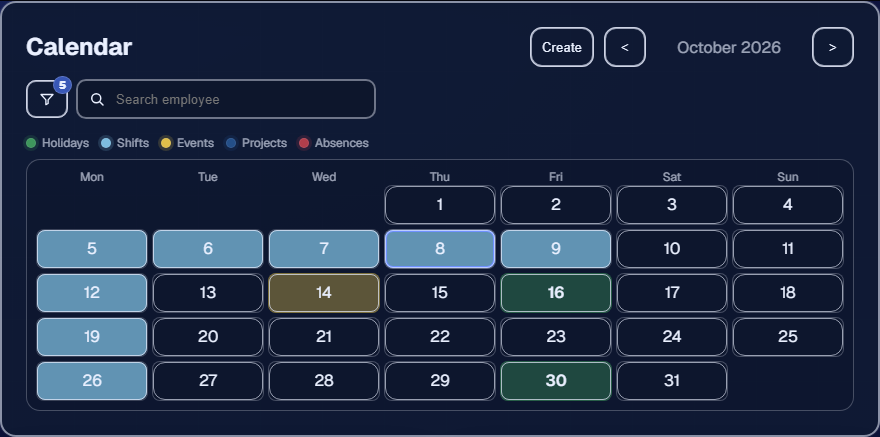
The shared calendar places shifts, leave, absences, and project work together, with a label and colour for each type.
What appears in the calendar
Shifts
Planned start and finish times assigned to the relevant employee or group. Shifts describe expected work; clock entries separately record what actually happened.
Projects
Project date ranges and selected working dates provide job context alongside the rota. Project visibility still depends on the user's access and assignment.
Holiday and absence
Approved leave and recorded absence help managers identify availability conflicts. Sensitive absence detail belongs in the restricted absence record rather than the shared calendar label.
Filters and colour cues
Help users isolate the record type or people relevant to the decision they are making. Always confirm the event label and details instead of relying on colour alone.
Create a useful shift
Set a clear date and time.Use the employee's real expected start and finish, including the correct day for work that crosses midnight.
Assign the right audience.Choose an individual, maintained team, or the appropriate group. Check for existing leave and overlapping work before publishing.
Add working context.Include the project or concise instructions when available so the employee knows where the shift belongs and what preparation is needed.
Review the employee view.Confirm the shift appears for the intended people and that restricted project details are not exposed to other roles.
Use the calendar day to day
Use the filters and legend to separate shifts, approved holiday, absences, and project dates. When the plan changes, update the original shift, project, or leave record as well as telling the people involved. That keeps the calendar useful to everyone who was not part of the conversation.
Weekly scheduling checklist
Review the next working week before publishing or confirming rotas.
Check leave and absence conflicts before assigning people.
Use teams only when their membership is current.
Compare completed shifts with missing-clock-in reporting.
Record last-minute changes in Employr so the office and employees share the same plan.
Keep descriptions practical
Put only the information needed to carry out the work in a calendar item. Store sensitive employee notes in the appropriate restricted record, not in a widely visible shift description.
Documents & policies
Store current company documents, send each one to the people who need it, and see who has acknowledged it.
Starter+250MB–25GB by planAssignment & sign-off
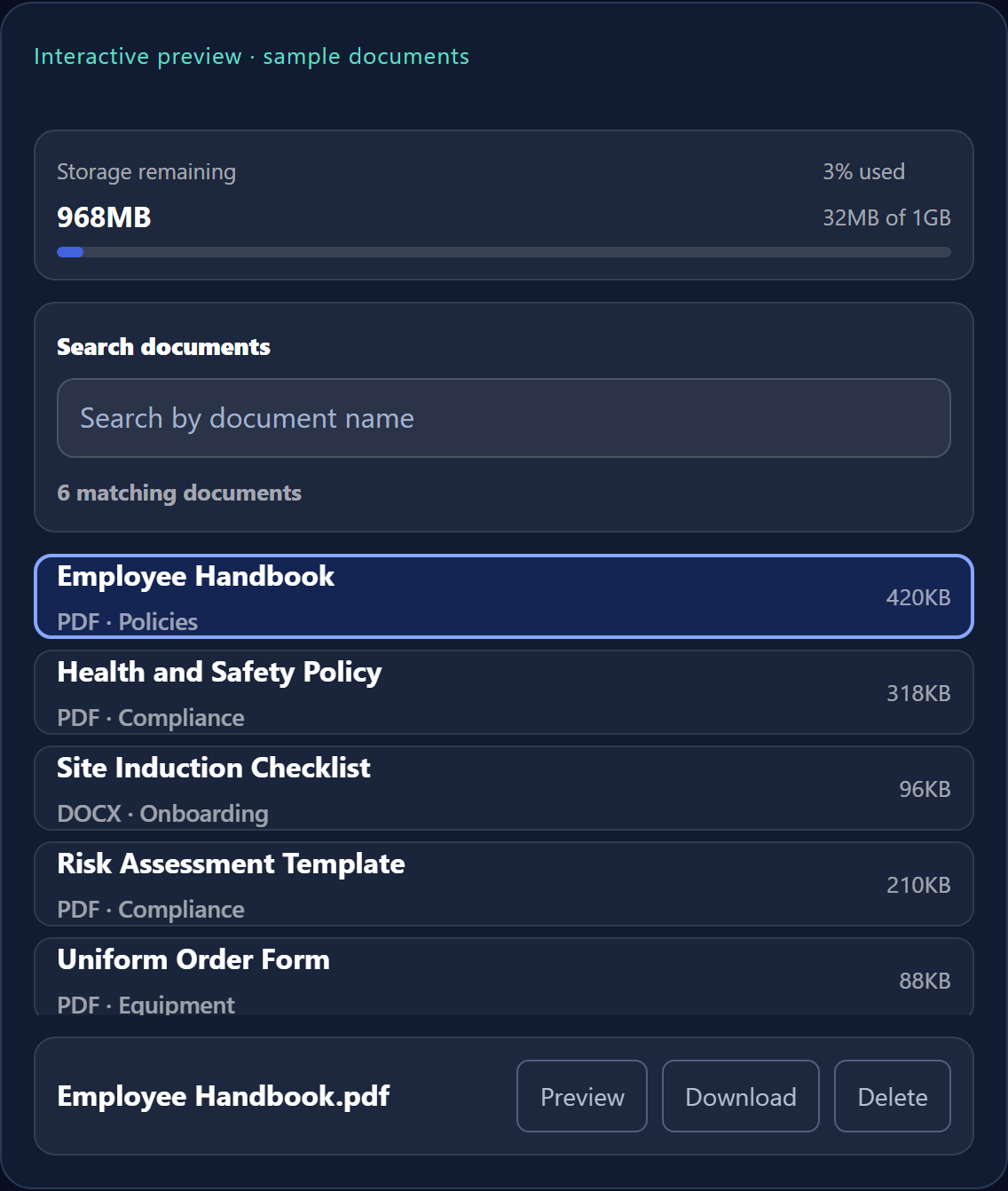
A sample document library with searchable records, categories, and visible storage use.
Document tools
Company library
Stores approved files that apply across the company rather than to one project. Authorised users can search by title or category and see the storage used.
Categories
Keep policies, compliance, onboarding, equipment, branding, and other files in a predictable order. A category helps people find a file; it does not grant access.
Assignments
Send a document to selected employees, a team, or everyone in a role. The recipient must also have permission to use the document area.
Acknowledgements
Show who confirmed the document and when. An acknowledgement proves that the action was recorded; it does not show that practical training or a competency assessment took place.
Storage meter
Shows file usage against the plan allowance. Remove duplicate or obsolete files only after checking your retention requirements.
1
Upload
Add a document and file it under Policies, Compliance, Onboarding, Equipment, Branding, or Other.
→
2
Share
Assign it to specific employees, a team, or everyone in a role.
→
3
Acknowledge
Employees open the assigned document and, when required, sign to record that they have received and read it.
Publish a document well
Prepare the final file.Use a descriptive title and a file that employees can open on common devices. Put the version or effective date in the document and in the filename when it helps distinguish releases.
Choose the correct category.Use Policies, Compliance, Onboarding, Equipment, Branding, or Other consistently so search remains useful as the library grows.
Assign the audience.Select individual employees, a maintained team, or everyone in a role. Check the recipient preview before publishing sensitive material.
Decide whether acknowledgement is required.Require a signature when you need a record that each recipient acknowledged the document, and notify employees when it is available.
Review completion.Follow up on outstanding acknowledgements and confirm new starters receive the current onboarding and policy material.
Health and safety documents
Use the Safety area for health and safety or training documents that must be assigned and acknowledged. You can also attach a Form Builder template for a quiz, inspection, declaration, or other structured response. Employr creates a separate copy for that document, so you can edit the attached form without changing the original template.
When a document changes or retires
When a document changes
Upload the approved version, identify it clearly, re-check recipients, and request a fresh acknowledgement when the change is material.
When a document retires
Remove it from active use according to your retention policy. Do not silently overwrite a record when the historical version may still matter.
Check before uploading
Remove passwords and unrelated personal data, confirm the file is the approved version, and avoid uploading executable or untrusted content. Your storage limit depends on your plan.
Forms & signatures
Build a reusable form for work your team repeats, then attach a separate working copy to a project, safety document, or training document.
Team+Reusable templatesMulti-party signatures
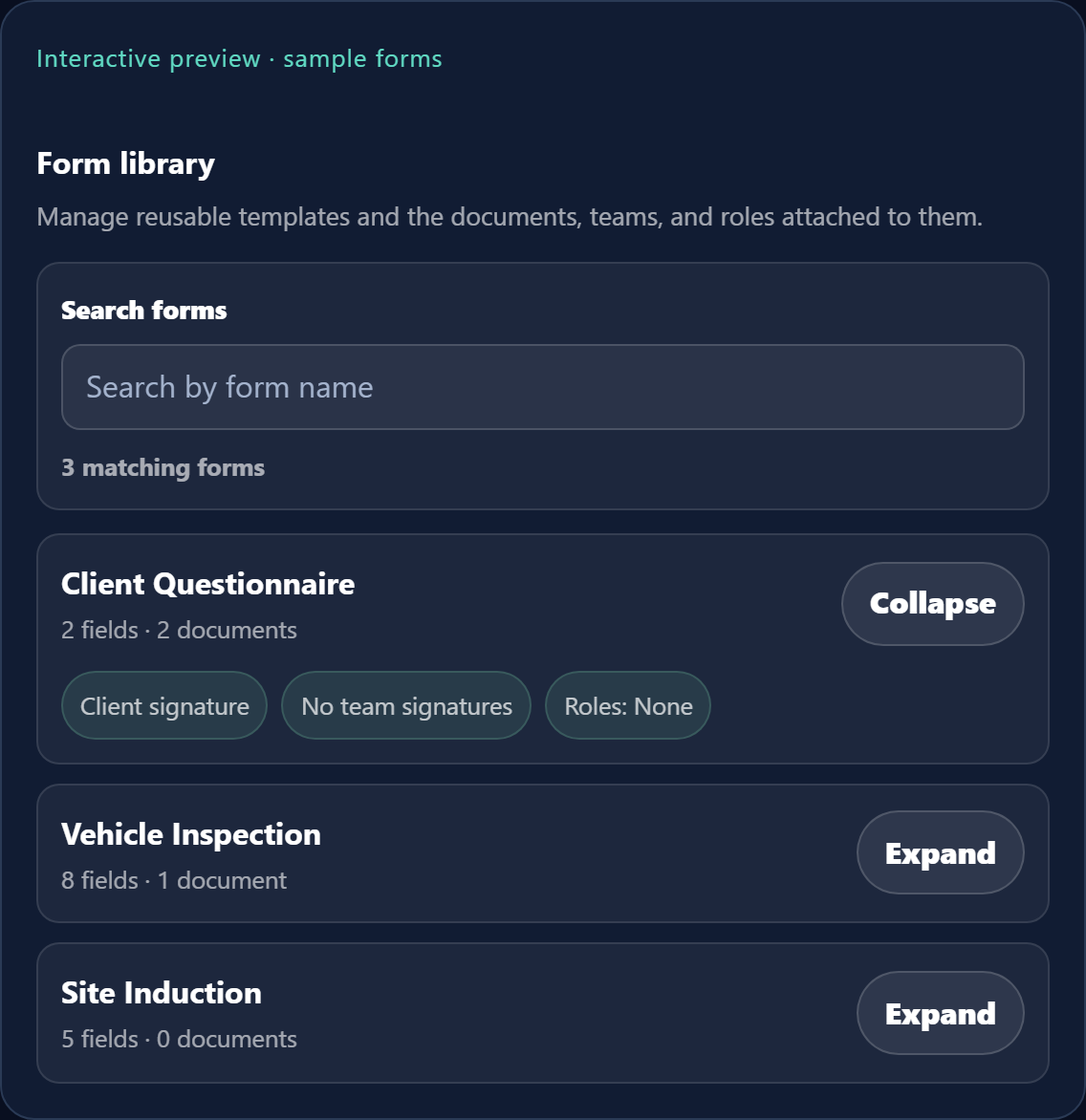
A sample form workflow. Build the template once, then assign and complete it consistently.
How forms are used
Template builder
Stores the polished master version: questions, field order, required evidence, and signature rules. Reuse the template instead of rebuilding the same form each time.
Field types
Text, dropdown, multiple choice, slider, image, file upload, and signature fields collect different kinds of answers. Use a fixed choice when you need consistent reporting and free text when the answer cannot be predicted.
Attached copies
When you attach a template to a project, safety document, or training document, Employr creates an independent copy. Changes to that copy do not alter the Form Builder template or copies attached elsewhere.
Assignments
Choose the employees or teams expected to complete the form. Their role must also allow them to open forms.
Signature requirements
Request client, team, lead, or employee signatures separately. Ask only for the people who take part in the real approval process.
Responses and attachments
Keep answers, uploads, images, and signatures together. Review anything incomplete or unusual before treating the response as finished.
Send the template directly, or attach an independent copy to a project, safety document, or training document.
→
3
Sign off
Client, team, lead, and employee signatures can each be required and captured digitally.
Design the template
Start with the decision or record the form must support. Add concise instructions, then choose fields such as text, dropdown, multiple choice, slider, image, file upload, and signature. Prefer structured choices where the answer must be compared or reported; reserve long text for details that cannot be predicted.
Name it clearly.Include the task and context, for example “Daily vehicle check” rather than “Checklist”.
Follow the order of the work.Put site or project details first, observations next, evidence beside the relevant question, and declarations or signatures last.
Require only essential evidence.Do not make every field mandatory. Require the answers and evidence needed to make the response usable.
Choose the signatories.A response can require client, team, lead, and employee signatures. Ask only for the people who actually take part in that approval.
Test before wide assignment.Complete the template as an employee on a phone, then review it as an administrator. Check labels, uploads, signature order, and the final record.
Assign, complete, and review
Assign a template directly to employees or teams when the same form can be used as written. When a particular job or document needs different wording, attach the template there and edit its copy. The assignee completes the fields, adds evidence, captures the required signatures, and submits it. A reviewer should check missing answers and any follow-up before closing the record.
Keep forms easy to complete
Avoid asking for the same information twice and explain what belongs in every free-text field. Test the form on a phone at the place where it will be used, not only on an office computer.
Template maintenance
Give each template a named owner.
Review it after a process, legal, or equipment change.
Test a revision before using it for live work.
Keep completed responses and attachments according to your retention policy.
Treat a captured signature as one part of the record, not proof that every legal requirement has been met.
Projects
Keep the dates, site contact, assigned crew, forms, documents, equipment, signatures, and hours for one job in the same place.
Team+Calendar connectedTime & records
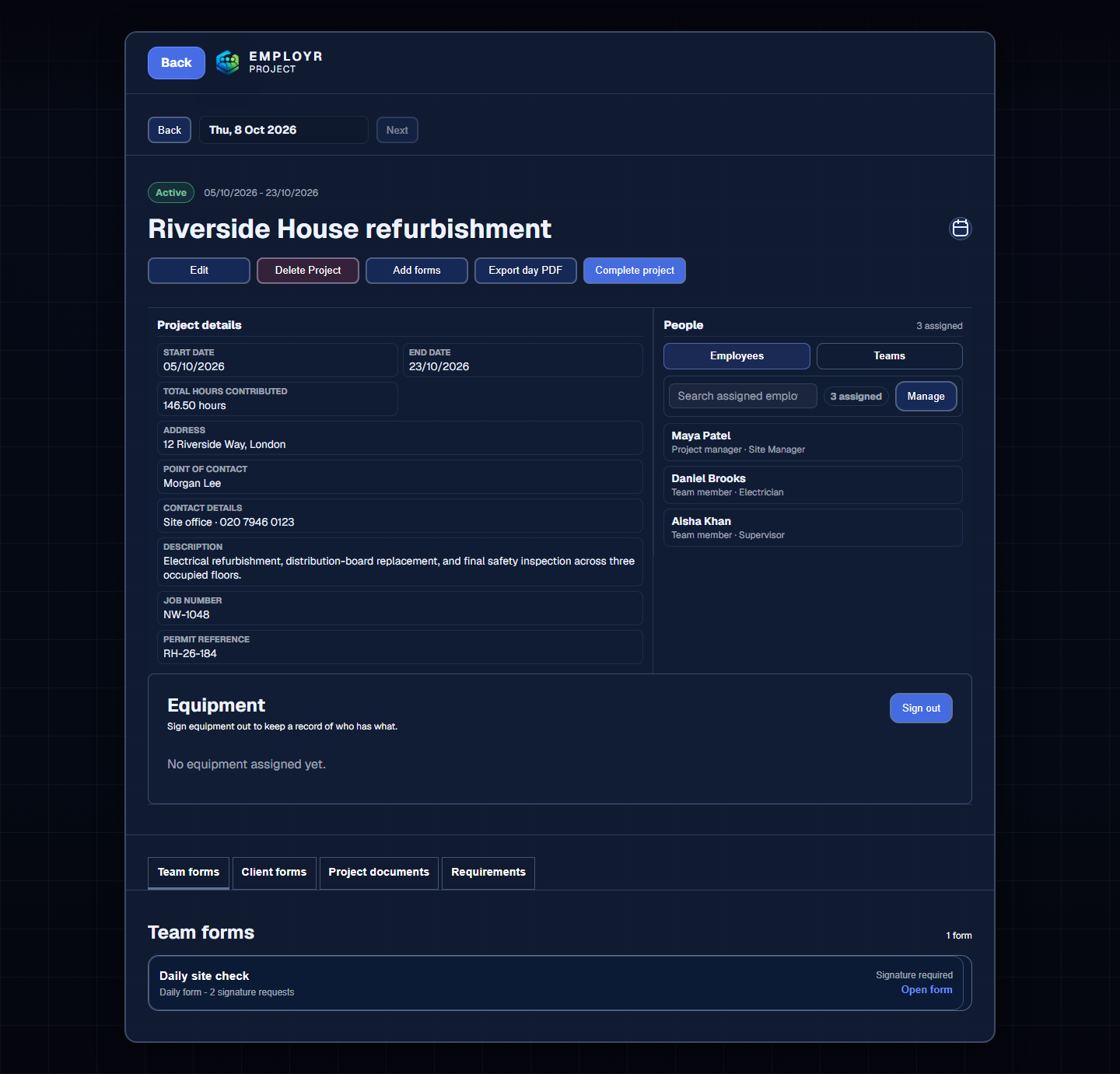
A complete sample project workspace: job context, assigned people, contributed hours, equipment, forms, documents, and completion actions in one record.
What a project keeps together
Project details
The job title, description, dates, site address, point of contact, and any company reference fields. Employees can check this information before starting work.
People and teams
The employees doing the work and the person leading it. Assign a team for the usual crew and add individual employees for exceptions or specialist work.
Recorded time
Shows clock entries tagged to the project and the accumulated hours. Check for missing entries and time assigned to the wrong project.
Forms and signatures
Attach a copy of a Form Builder template for daily checks, handovers, or client records. Edit the project copy when this job needs different wording; the master template remains unchanged.
Documents and equipment
Keeps job files and issued equipment visible from the project. Document access, acknowledgements, equipment holders, and returns still use their own records.
Status, review, and export
Move the job from active work to completion and review, then download the records you need. Check the record first instead of marking a project complete simply to clear it from view.
1
Create
Set a title, address, point of contact, custom fields, and start/end dates.
→
2
Link work
Assign teams, documents, and forms; employees tag clocked time to the job.
→
3
Export
Review the completed forms and download supporting records when the work is done.
Create the project record
Use a unique, recognisable title.Include a job number if your organisation uses one, and avoid two active projects with indistinguishable names.
Add the job details.Record the description, address, point of contact, start and end dates, and any approved custom fields needed for this work.
Assign responsibility.Add the employees, teams, and leads. Check team membership first so a former or unrelated employee does not inherit access.
Connect the work.Attach the documents and forms needed on the job, link equipment if required, and tell employees to tag their working time to the project.
Run the project day to day
People
Keep assignments and lead responsibility current when the crew changes.
Time
Review project-tagged clock entries and resolve missing or misallocated time while details are fresh.
Evidence
Monitor required forms, attachments, documents, and signatures rather than waiting until project close.
Dates
Update real schedule changes so calendar users are not working from an obsolete plan.
Close and review
Before treating work as complete, resolve open forms and signatures, review attachments, return or reassign equipment, and check project-related hours. Download or export supporting records needed by your internal process, then restrict further editing where your workflow requires it.
Dates and primary contact are final.
Each assigned form is submitted, still outstanding, or deliberately no longer required.
Required client, team, lead, or employee signatures are present.
Equipment loans are returned or deliberately transferred.
Clocked hours are reviewed for the full project period.
Equipment & uniform
See what equipment is available, who received each item, and whether it has been returned. Keep uniform sizes and requests in the same stock list.
Team+Employee & project linksDigital issue record
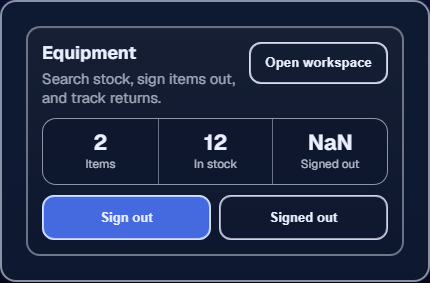
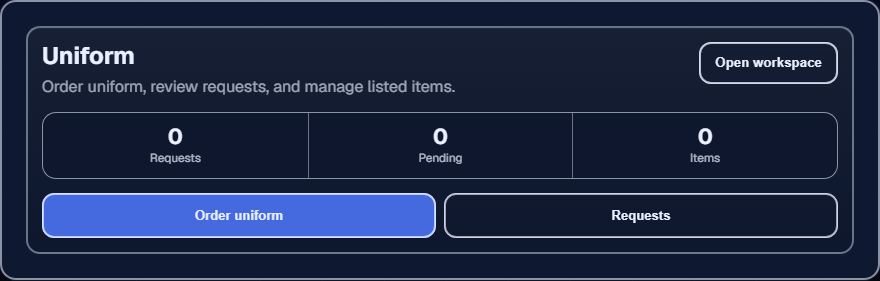
Equipment inventory and issue activity.Uniform stock and employee request management.
Equipment and uniform records
Equipment inventory
Describes reusable items and available quantities using the names, categories, and identifiers your team recognises. Accurate availability depends on prompt issue, return, and stock updates.
Sign-out record
Connects an item and quantity to an employee, optionally to a project, with a captured handover signature. It answers who received what and when; it is not a substitute for inspection or training.
Return status
Keeps an item unavailable until the loan is deliberately marked returned. Confirm condition and quantity physically before closing the record.
Uniform catalogue
Stores item, size, colour, supplier, and stock information so employees request an available variation rather than submitting an unstructured message.
Uniform approval
Gives an administrator a queue of employee requests to approve or reject against stock and company policy, preserving the request history.
1
Sign out
Log the item, quantity, employee, and optional project with a digital signature at checkout.
→
2
In use
The item remains checked out and the record shows its last recorded holder and project.
→
3
Returned
Mark it returned to close the loan and free it back up for issue.
Maintain equipment inventory
Use a consistent asset name and, where applicable, a serial or internal asset reference. Categorise items consistently and keep availability accurate. The system record is most useful when physical labelling and handover practice use the same identifier.
Issue and return equipment
Select the exact item.Check its identity, quantity, and availability before issue.
Record the holder and context.Choose the employee and, when relevant, the project the equipment supports.
Capture the handover.Use the digital signature and any appropriate notes to record that the item was issued.
Close the loan on return.Inspect the item, record the return promptly, and handle damage or loss through your internal process.
Manage uniform requests
Maintain uniform items with size, colour, quantity, and supplier information. Employees submit requests for the item and variation they need; an authorised administrator checks eligibility and stock, then approves or rejects the request. Update stock as orders arrive and issues are completed so later decisions use real quantities.
Keep maintenance records separately
An issue record shows who received an item and whether it was returned. Continue to carry out and record the inspections, calibration, servicing, and safety checks required for the equipment itself.
Holidays & absences
Use holiday requests for planned time off and absence reports for unplanned time away. Keeping them separate protects holiday balances and makes the calendar clearer.
Starter+Days or hoursShared calendar
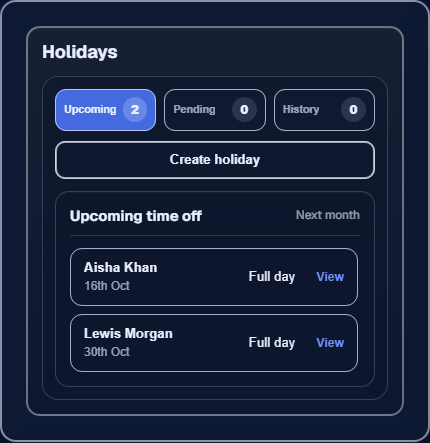
The Holiday area keeps upcoming requests and management actions together.Approved leave becomes part of the shared planning view.
How the leave records differ
Holiday allowance
The annual amount for a role, recorded in days or hours. The role also sets the holiday-year reset date and the hours paid for a full holiday day.
Holiday request
The dates, duration, and note sent for approval. The employee can see whether it is pending, approved, or rejected.
Approval queue
Lets authorised managers compare the remaining allowance, other leave, and staff coverage before deciding. Add a reason when rejecting a request.
Shared calendar
Shows approved leave beside shifts and project work. A pending request is not confirmed leave.
Absence record
Keeps unplanned absence, dates, reason, notes, and permitted evidence out of the holiday balance and in its own review process.
Requesting holiday
Choose the correct leave type and period.Select the date range and the available whole-day, half-day, hours-based, unpaid, or relevant family-leave option shown by the workflow.
Review the allowance impact.Check the displayed duration against the employee's days- or hours-based allowance and working-day setup.
Submit for approval.The employee can add the context needed for a decision without putting unnecessary medical or personal detail in a general note.
Approve or reject consistently.An authorised manager checks coverage, policy, existing leave, and entitlement. Give a useful reason when declining.
Tracking allowance
Approved holiday is deducted from the allowance set for the employee’s role. Each role can use days or hours, set the allowance amount, choose the day and month when its holiday year resets, and define the paid hours in a full holiday day. Check existing balances after moving someone to another role or changing their working pattern.
Reporting absence
Log unplanned absence separately with the date range, absence type or reason, proportion of the day where supported, appropriate notes, and optional evidence. Restrict sensitive evidence to people who need it. Use your organisation's return-to-work and follow-up process outside or alongside the record where required.
Planned leave
Requested in advance, checked against entitlement and coverage, then approved or rejected.
Unplanned absence
Recorded when it occurs, handled with the appropriate evidence and follow-up, and reported separately from holiday.
Manager checklist
Resolve pending requests before publishing dependent schedules.
Check team coverage and overlapping leave in the calendar.
Review allowance anomalies after role or working-pattern changes.
Limit access to sensitive absence evidence.
Follow your own policy and applicable employment requirements when making decisions.
Safety & incidents
Let employees report a hazard, near miss, or accident in the right place, then give authorised managers the facts and evidence needed for follow-up.
Team+Role-controlledHazards, near misses & accidents
What appears in Safety
Employee reporting
Separate forms for a hazard, near miss, or accident. The employee records the facts, place, time, people involved, and any immediate action.
Evidence
Photos or files kept with the report. Collect evidence only when it is safe and permitted, and leave out material the review does not need.
Manager review
A list that authorised managers can filter and open during investigation and follow-up.
Health and safety documents
Policies, instructions, RAMS, or other controlled documents sent to selected recipients, with acknowledgement and an optional attached form.
Training records
Training material, recipients, acknowledgement status, and an optional attached form. Acknowledgement records receipt; assess practical competence separately when the work requires it.
Choose the right record
Hazard
A condition or source with the potential to cause harm, whether or not an incident has occurred.
Near miss
An unplanned event that did not cause injury or damage but could have done so.
Accident
An event that caused injury, ill health, damage, or another actual adverse outcome.
Immediate emergency
Use emergency services and your site's emergency procedure first. Do not delay an urgent response to complete an Employr record.
Create a useful report
Make the situation safe first.Follow the site’s emergency procedure, get help, and preserve the scene if it is safe and necessary.
Record the facts.Choose the report type and add the actual date, time, location, people involved, and a factual description of what happened.
Add useful evidence.Attach photographs or supporting information only when it is safe, permitted, and relevant. Avoid speculation and unrelated personal details.
Tell the responsible person.Submitting the form does not replace an urgent call or the organisation’s reporting chain.
Review and act.An authorised manager checks immediate controls, investigation needs, corrective action, and whether the event must be reported elsewhere.
Permissions and confidentiality
Enable reporting for the roles that need it and restrict management access to authorised people. Incident records may contain health, witness, or other sensitive information; use neutral factual wording, limit attachments, and follow your retention and access policies.
Connect prevention work
Use Safety and Training documents for policies, instructions, toolbox talks, and other material people must receive. Attach a Form Builder template when the document also needs a quiz, declaration, inspection, RAMS record, or jurisdiction-specific compliance form. The attachment is an independent copy: edit it for this document without changing the original template or any other attached copy.
Important limitation
Employr helps organise reports and acknowledgements. It does not make a workplace compliant, replace competent safety advice, determine whether an event is legally reportable, or contact emergency services or regulators for you.
Reports & pay
Use Reports to find attendance problems and review employee history. On Business and above, turn reviewed time into a pay breakdown that can be checked before it is sent to the employee.
Reports: all plansPay breakdown: Business+Role-controlled
Tabs appear when the company plan and the viewer’s role allow them. An employee may therefore see fewer tabs than an administrator.
Choose the right report
Search
Find clock entries by employee and date. Open an employee’s history when you need to check a particular day or compare recorded time over a period.
Discrepancies
Lists missing clock-ins, conflicting records, completed shifts over the configured duration, and corrections waiting for review. Open the underlying record before deciding what needs changing.
Holiday requests
Shows requests that need a decision and the leave history available to the viewer’s role.
Absence reports
Keeps unplanned absence separate from holiday. Filter the period and limit access to people who are permitted to handle sensitive evidence.
Safety
Brings hazard, near-miss, accident, and health-and-safety document records into one review area.
Training
Shows training documents, recipients, acknowledgements, and any form attached to the training record.
Review a reporting period
Set the employee and dates.Start with the period you intend to review rather than searching the whole company history.
Open Discrepancies.Check missing clock-ins, overlaps, long shifts, and pending corrections. Confirm each exception against the rota and employee explanation.
Check leave and absence.Make sure an apparent missing clock-in was not approved holiday, recorded sickness, or a cancelled shift.
Review project allocation.Correct time attached to the wrong project before using totals for project review or pay preparation.
Export only the reviewed period.Keep the export with the date range and filters used so another reviewer can understand what it contains.
Create a pay breakdown
Set role rates first.In Settings, add the normal day and night rates and any separate daytime or night overtime rates used by each role. A blank overtime rate falls back to the matching normal rate.
Select the employee and timeframe.Choose this week, this month, or a custom date range, then select the completed shifts to include.
Check the options.Review rounding, included identifiers, shift roles, and whether calculated pay components should be shown. Rounding trims down to the selected interval; it never adds minutes.
Review every adjustment.Check overtime, allowances, bonuses, and deductions against the source records and your organisation’s pay rules.
Preview, complete, and send.Preview the finished sheet, mark it complete, then send it to the employee or download the PDF for the permitted payroll process.
Pay preparation, not payroll
Pay Breakdown helps organise hours and adjustments. It does not make payments, submit tax returns, or replace payroll and employment-law checks. Review the final figures before using them.
Billing & plans
Choose a plan by checking the employee limit, role and team limits, storage, and the features your company will actually use.
Fixed price by planMonthly or annual optionsUpgrade as you grow
How subscription controls work
Plan capacity
Sets the maximum number of employees, roles, teams, and stored documents the workspace can use. Capacity applies to the company as a whole rather than being purchased separately for each person.
Feature availability
Sets the highest level of functionality the company can enable. Role permissions operate inside that boundary: a permission cannot unlock a module excluded from the company plan.
Billing period
Monthly and annual options cover the selected plan for their stated period. Review the checkout summary, renewal basis, and tax presentation before confirming payment.
Billing portal
Provides the secure route for supported subscription and payment-method actions. Card details should be entered only in the hosted payment flow, never in a support ticket.
Plan capacity and main additions
Plan
Employees
Roles
Teams
Storage
Main addition
Free
5
3
0
None
Core people, calendar, and time
Starter
10
5
0
250 MB
Leave, absence, documents, and branding
Team
25
10
5
1 GB
Projects, forms, teams, equipment, and safety
Business
50
15
10
5 GB
Expanded workforce and pay controls
Growth
100
20
10
10 GB
Capacity for larger operations
Scale
Custom
Custom
10
25 GB
Limits and billing agreed with Employr
Current monthly pricing
Free — £0/month.
Starter — £19/month.
Team — £45/month.
Business — £79/month.
Growth — £129/month.
Scale — custom pricing agreed with the Employr team.
Employr is not VAT registered. No VAT is charged.
See the pricing page for the full comparison and the current annual option. The checkout or billing portal shows the amount and applicable tax presentation before you confirm a purchase.
Upgrade or change billing
Open Manage subscription.In the web app, go to your account and choose Manage subscription. Employr opens the plans page where you can compare upgrades and downgrades.
Check the target plan.Compare employee, role, team, and storage limits as well as the feature you want to add or remove.
Review the billing summary.Confirm the company, billing period, price, and any tax shown before approving the change.
Complete the hosted billing step.Enter payment details only in the secure checkout or billing portal opened by Employr, never in a support ticket.
Return and verify access.Confirm the plan shown in Settings and test the relevant feature with a role that has permission to use it.
When a paid plan changes
The newly selected subscription takes over immediately. A plan change can charge the new subscription at once even when time remains before the previous renewal date. Check the checkout summary before confirming.
Before moving to a lower plan
Check whether your current employee, role, team, or storage usage exceeds the lower limits and identify workflows that depend on higher-tier modules. Export or reorganise records according to your policy before making a change that could restrict access.
Account & security
Protect each login, review high-access roles, and use the built-in verification steps before making changes that cannot be undone.
All accountsTwo-step deletion checkCompany controls are role-restricted
Protect a login
Give every person their own account; never share one login between employees.
Use a unique password and enable two-factor authentication where available.
Keep the account email address current because verification and recovery codes are sent there.
Sign out on shared computers and remove downloaded employee files when they are no longer needed.
Review administrator and management permissions whenever someone changes role or leaves.
Change account details safely
Use Settings for password, contact, notification, two-factor, and company controls. Check that you are editing the intended company and account before saving. A company administrator can change business settings, but should not change another person’s login details or reuse a former employee’s account.
Delete an account or company
Check what will be removed.Read the warning carefully, export any records your organisation must retain, and settle ownership of open work first.
Enter the current password.Employr checks the signed-in user’s password before it sends a deletion code.
Check the account email.Enter the short-lived verification code sent to that address. Do not give the code to support or another employee.
Confirm the exact action.Deleting only your account and deleting the whole company are different actions. Confirm the one shown on screen only when you understand its scope.
Deletion is deliberately difficult
Password entry and email verification protect against an unattended signed-in device. They do not make deletion reversible. Export required records and complete your own retention checks first.
Using Employr on a phone
Use the mobile web app or an Employr mobile app with the same login, company membership, and role permissions you use on a computer.
Mobile web, Android & iOSInternet connection requiredSame company data
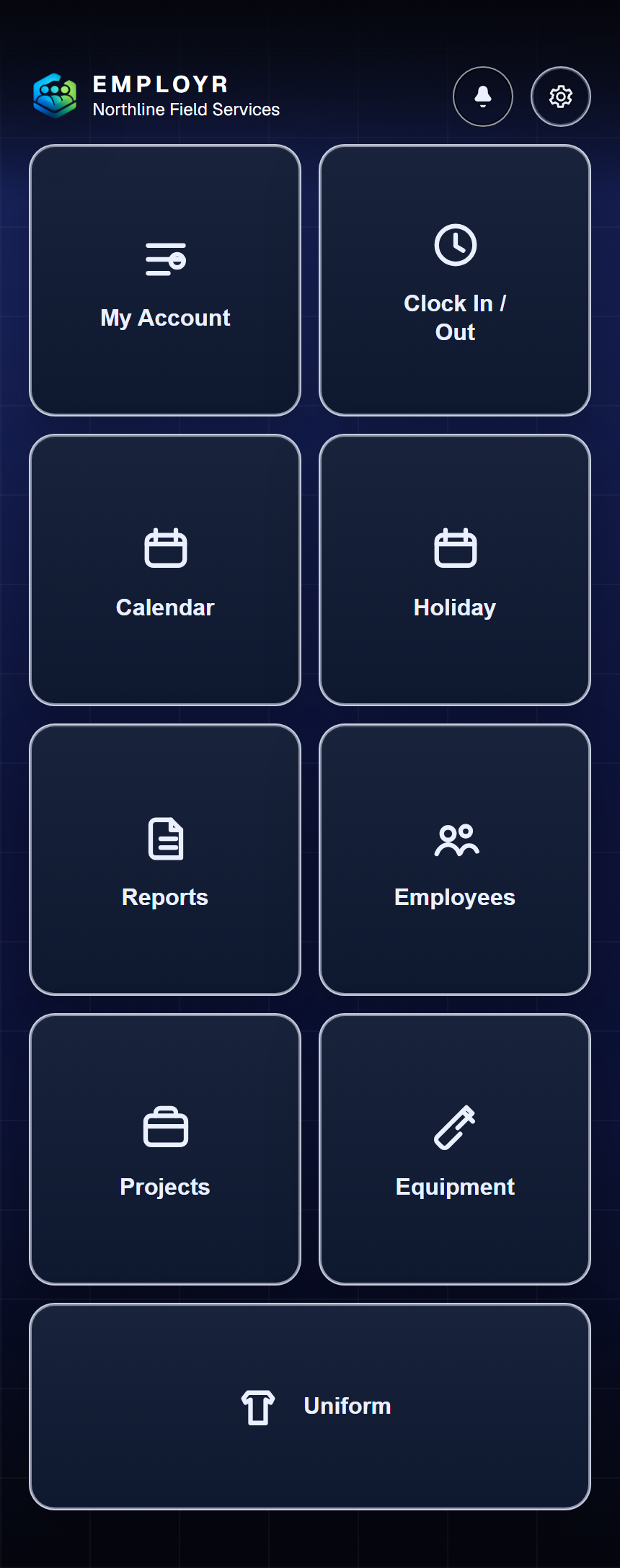
The responsive mobile workspace puts permitted everyday modules within one tap.
How the mobile experience works
Mobile web
Open the Employr web app in a current phone browser. The layout adapts to the smaller screen and uses the same company records as desktop.
Android and iOS
Use the native app supplied through your organisation or an official Employr release. Sign in with the same account; do not create a second account for the app.
Role-aware navigation
Shows the features included in the company plan and allowed by the employee’s role. If a card is missing, an administrator should check both settings.
Device permissions
Asks for camera or file access when an upload needs it, and for optional location when clocking. Refusing location does not prevent clocking.
Online submission
Sends each change to the shared company workspace. Wait for the success message before closing the page or app, especially after uploading a file.
Open and use the mobile workspace
Open the correct app.Use the Employr web app at employr.co.uk or the official Android or iOS app provided to you. Sign in with your normal account.
Check the company and profile.Before submitting time, forms, or requests, confirm that the intended company and employee profile are shown.
Allow only the permissions you need.Camera or file access may be required for evidence. Location is optional for clocking.
Wait for confirmation.After saving or submitting, wait for the success message before closing the browser, leaving the app, or losing connection.
What is available
Core time and calendar tools are available on every plan. Holiday and absence workflows require Starter or above. Documents, forms, projects, equipment, uniform, teams, and safety depend on both the company plan and the employee's role. If a card is missing, an administrator should check those two controls first.
Connection and device security
Use a current browser and a device protected by a passcode or biometric lock.
Do not save credentials on a shared or public device.
Wait for uploads and submissions to finish before leaving the page.
Sign out after using a shared device and remove downloaded employee files.
Report a lost work device through your organisation's security process promptly.
Subscription changes use the website
The Android and iOS apps show the current plan but do not sell, upgrade, downgrade, or cancel subscriptions. Sign in through employr.co.uk in a browser and use Manage subscription or Cancel subscription from your account.
Commonly asked questions
Short answers to the questions that most often come up during setup and everyday use.
How much does Employr cost?
You pay a fixed price for the selected plan, not a separate fee for each employee within its limit. See the pricing page for current monthly and annual options.
Is there a free plan?
Yes. Free supports up to 5 employees and 3 roles with core people, scheduling, clocking, and attendance tools. It does not include document storage or paid modules.
Can employees join without a company account?
Yes. Employees can create a free account first, then join an existing company using its join details. Their company’s subscription and role permissions determine the features they can access.
Is our data kept separate from other companies?
Yes. Company membership and role permissions control access to employee records, documents, forms, and projects. The privacy policy explains when Employr and its service providers process data to operate and support the service.
Why can one employee see a feature that another cannot?
Access depends on both the company plan and the employee's assigned role. An administrator should compare the employees' roles, the module's access and management permissions, and whether any assignment is limited to a person or team.
Can we bring existing documents into Employr?
Starter and above can upload supported files to the company document library, within the plan’s storage allowance. Check that each file is current, choose a consistent category, and assign only the people who should receive it.
What if someone forgets to clock in or out?
They can request a correction to an entry from the previous 35 days and explain the change. An authorised administrator then approves or rejects the request. Resolve mistakes while schedules and supporting details are still easy to verify.
Does Employr work offline?
An internet connection is required to access and update company records. If a connection drops during a submission, reconnect and confirm that the result appears before trying again.
Is location required for clocking?
No. Location may be captured only when the employee has already granted device permission; it is not required to clock in or out.
Does Employr run payroll?
No. Business and above can turn reviewed shifts, rates, overtime, allowances, bonuses, and deductions into a pay breakdown. Employr does not make payments or submit tax returns, so the completed breakdown still needs your payroll checks.
What happens when we change plan?
The new subscription takes over immediately and can be charged at once, even when time remains before the old renewal date. Before moving down, compare your current employees, roles, teams, storage, and feature use with the target plan.
How should we handle exports or deletion requests?
First confirm who made the request and what your organisation must retain. Use the relevant export or deletion control in Employr. Account and company deletion require the current password and a code sent to the account email. See the privacy policy and Data Processing Agreement for more context.
Get support
Open a ticket inside Employr and keep the request, replies, and status in one conversation.
Company accountsOne active ticket per companyConversation history
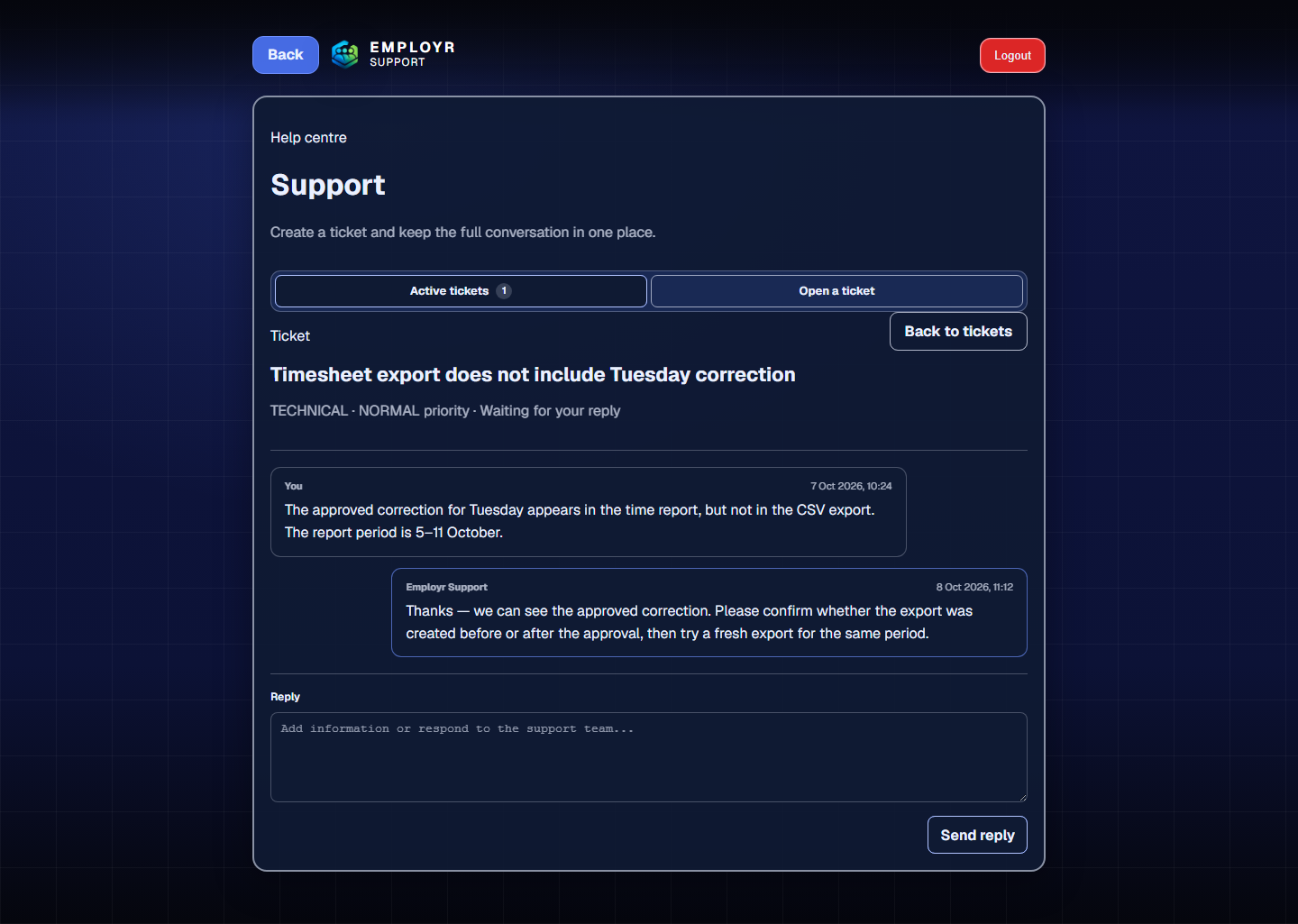
An in-app ticket keeps the original request and every reply in one trackable conversation.
Open and follow a ticket
Open Support.Use Support in the app or choose Open support ticket from Settings. The company account can open and follow the ticket.
Explain the problem.Use a specific subject, choose the closest category and priority, and say what you expected, what happened, and when it happened. Do not include passwords, verification codes, or full payment details.
Read the whole conversation.The active ticket shows the original message, every reply, and its current status: Open, Being reviewed, Waiting for your reply, Resolved, or Closed.
Reply in the same ticket.Answer questions and add relevant information in the ticket’s reply box. Your reply moves the ticket back to Open for the support team.
Open a new ticket after closure.A company can have one ticket that is not Closed. Keep related messages together; another ticket can be opened once the current one is closed.
For sales, partnerships, feedback, or another general enquiry, use the Contact page.